Admin Settings
Thematiq provides an admin settings panel for configuring the active theme, optional display settings, and per-token CSS overrides.
Accessing Settings
- Log in as a Nextcloud administrator
- Go to Administration Settings (click your avatar, then "Administration settings")
- Navigate to Appearance in the left sidebar
- Scroll down to the Thematiq section
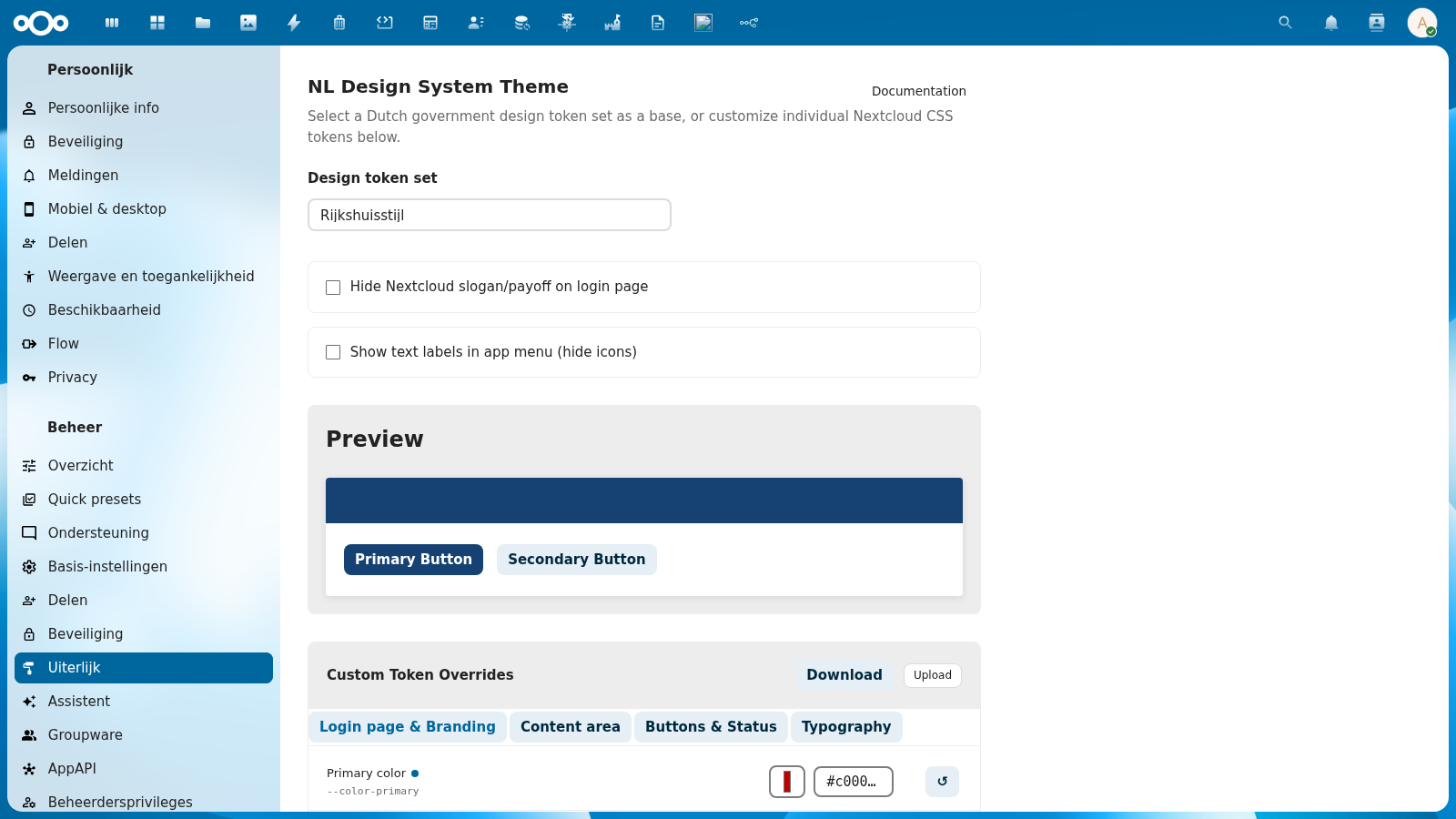
Token Set Selector
The main control is a dropdown listing all 39 available token sets. When you select a token set:
- The CSS theme updates immediately on the current page
- A color preview swatch shows the selected theme's primary color
- Nextcloud's theming system is synced with the new primary color, background, and logo (see Theming Sync)
When you switch to a different token set, the Apply Token Set dialog appears, letting you review and selectively apply the token changes to your custom overrides.
Display Options
Below the token set selector, two toggle checkboxes provide optional adjustments:
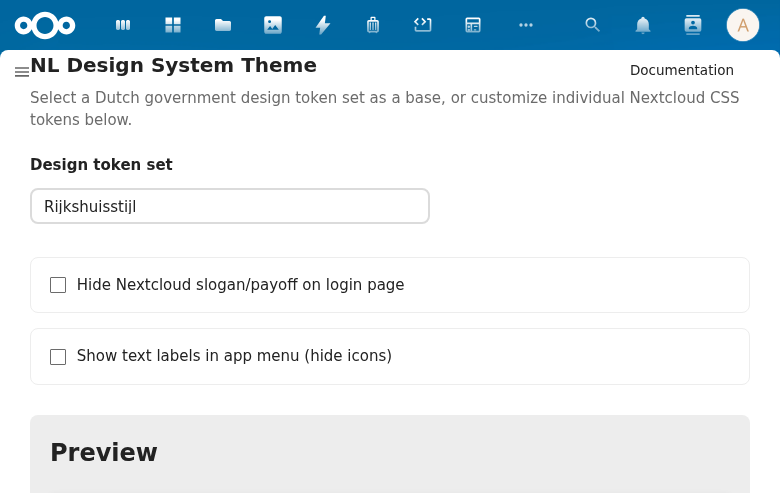
Hide Login Slogan
Controls whether the tagline/slogan text is visible on the Nextcloud login page. Enable this for a cleaner login experience that focuses on the organization's branding.
Show Menu Labels
Controls whether text labels appear next to the icons in Nextcloud's left sidebar navigation. By default, Nextcloud shows only icons — enabling labels improves accessibility and usability, especially for new users.
Preview Section
The Preview section shows a live preview of the current theme's primary color applied to sample buttons. This updates immediately as you switch token sets or modify individual tokens.
Custom Token Overrides
The Custom Token Overrides section lets you fine-tune individual CSS tokens beyond what your selected token set provides. Changes apply instantly as a live preview.
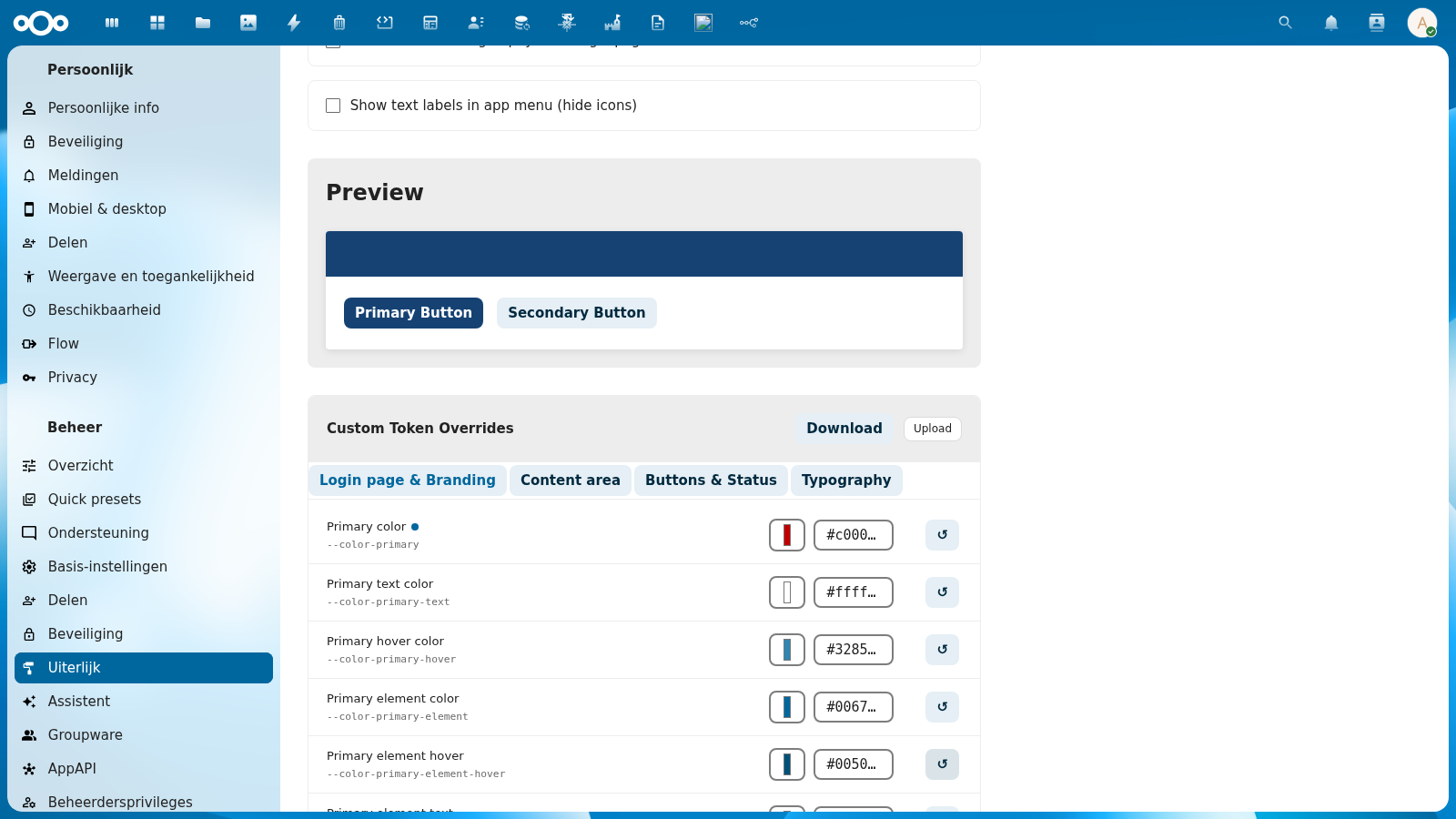
See the dedicated pages for full details:
- Token Editor — Edit individual CSS tokens across 4 category tabs
- Import & Export — Download your overrides as CSS or upload a CSS file
- Apply Token Set Dialog — Review and selectively apply token set changes
Technical Details
The admin settings panel is built with vanilla JavaScript and PHP templates (no Vue.js or webpack build step). This keeps the admin UI lightweight and avoids frontend build dependencies.
Settings are stored in Nextcloud's IConfig system and take effect immediately without requiring a page reload for the CSS changes.
Mobile logo and home screen icon
Under Mobile logo and home screen icon you set two images for the whole workspace:
- Mobile logo. The header shows it on screens narrower than 1024 pixels, where Nextcloud's header goes narrow. PNG, JPEG, WebP or SVG, up to 1 MB. A brand per app keeps its own small logo.
- Home screen icon. A phone shows it when someone adds the workspace to its home screen. A square PNG of at least 120 by 120 pixels; 180 by 180 is best.
Without them Nextcloud uses its logo and its favicon. The favicon in the browser tab does not change. An Android home screen keeps Nextcloud's icon: Nextcloud writes that from its favicon, and thematiq cannot change it.
OpenProject in the apps menu
Run OpenProject next to Nextcloud? Under OpenProject in the apps menu, enter OpenProject's address, such as https://openproject.example.org, and click Save address. The apps menu of the workplace top bar then lists OpenProject's modules in a section of their own, after Nextcloud's apps: Work packages, Gantt charts, Boards and Meetings. Leave the field empty to remove the section.
The OpenProject plugin openproject-thematiq does the same the other way: it lists Nextcloud's apps in its app switcher when you give it Nextcloud's address.
The list is fixed. It does not ask OpenProject which modules exist or which ones a person may open; OpenProject decides that when the link is followed. To list other modules, set them with the command line, by key, in your order: occ config:app:set thematiq openproject_modules --value="work_packages,boards,meetings,projects". The keys are projects, my_page, work_packages, gantt, boards, team_planners, calendar_view, meetings and news, at most nine.
The section shows in the workplace top bar's apps menu, the one thematiq arranges. With Nextcloud's own top bar the menu stays as Nextcloud draws it.