Installing Thematiq
Installing Thematiq takes about one minute. You do it from inside Nextcloud — no server access needed.
Step 1 — Open the Apps section
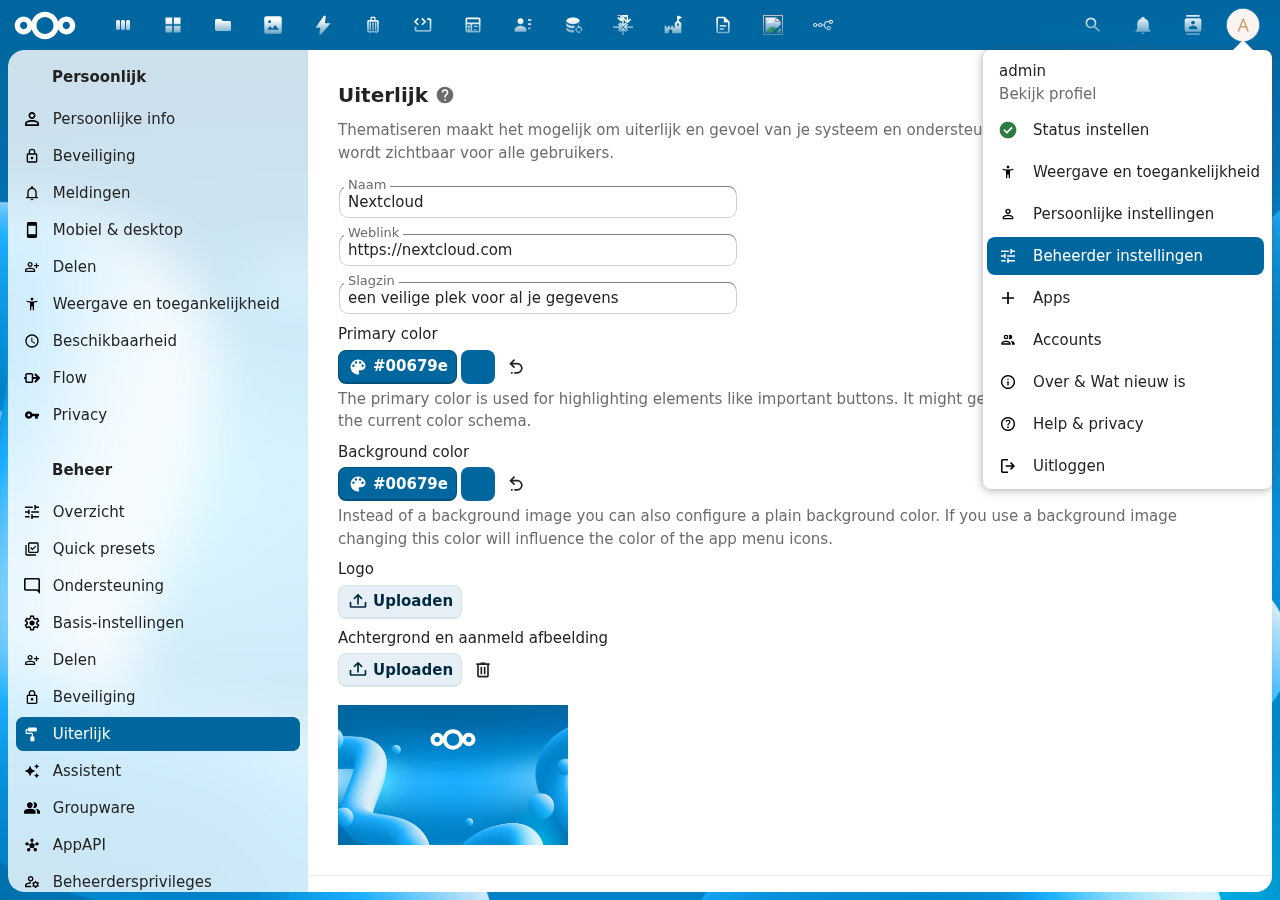
Log in to Nextcloud as an administrator. Click your avatar (top-right corner) and choose Apps.
Step 2 — Search for Thematiq
In the Apps section, type Thematiq in the search bar. The app is listed under the Customization category.
You can also find it directly in the Nextcloud App Store.
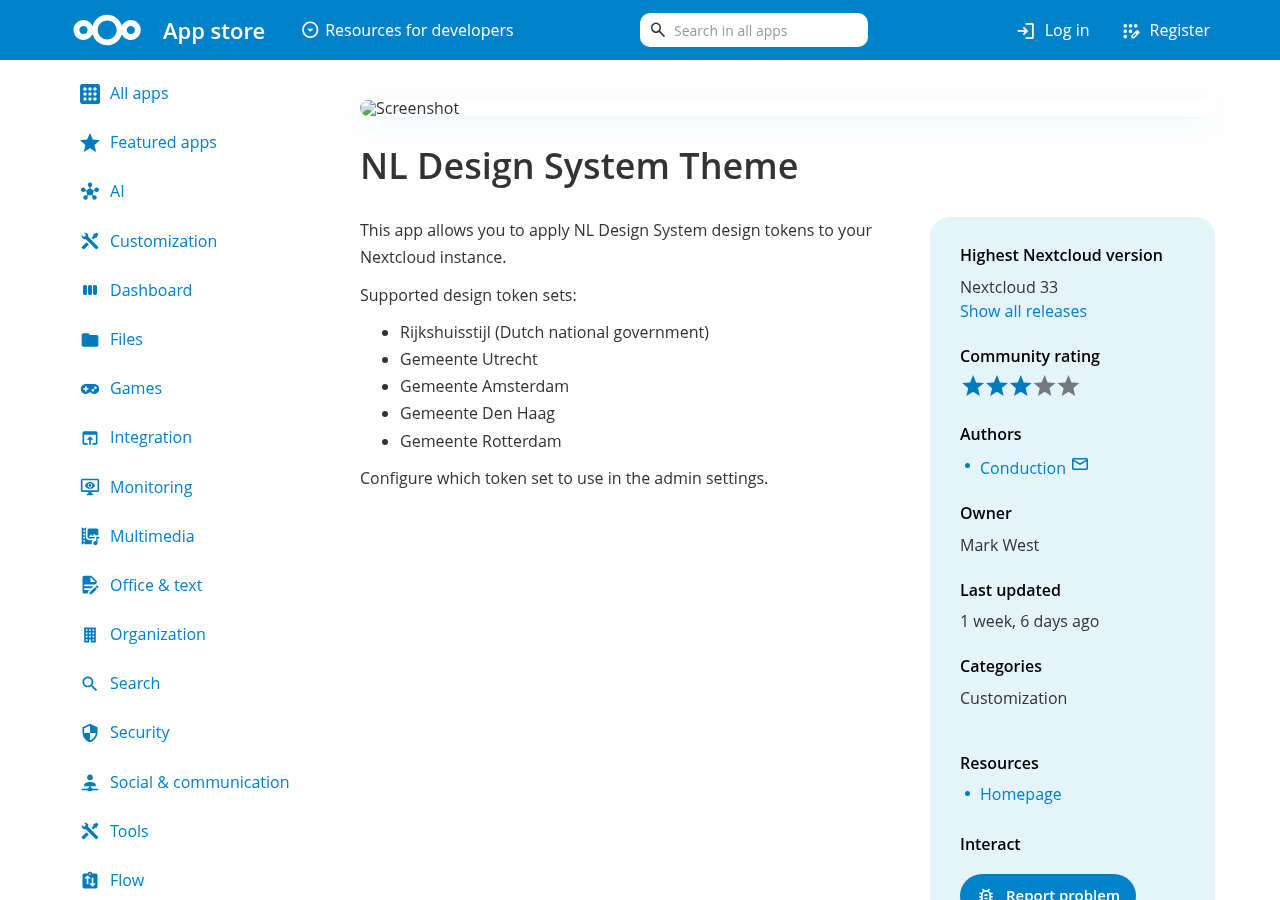
Step 3 — Click "Download and enable"
Click the Download and enable button next to the Thematiq app. Nextcloud downloads and activates it automatically.
Once installed, Thematiq immediately applies the Rijkshuisstijl (Dutch national government) theme. Your Nextcloud will look different straight away — that's expected!
Step 4 — Go to the settings
After installation, you're ready to choose your organisation's theme. Go to the settings:
- Click your avatar (top-right corner)
- Choose Administration settings
- Click Appearance in the left sidebar
- Scroll down to the Thematiq section
→ Continue to Choose your theme to pick your organisation.
Requirements
- Nextcloud 28 or newer
- You need to be an administrator
Removing the app
If you ever want to remove Thematiq, go to Apps, find Thematiq, and click Remove. Nextcloud will revert to its default look immediately. Your settings are saved — if you reinstall the app later, your previous theme choice will still be there.