Token Editor
The Custom Token Overrides section in the admin settings lets you fine-tune individual Nextcloud CSS tokens independently of your selected token set. Overrides apply as a live preview instantly, and are saved persistently when you click Save overrides.
Overview
The token editor is located in the Thematiq section of the Appearance admin settings. It consists of:
- A count of the editable tokens: 712 on this release
- A search field that finds any token by its label, its CSS name or its component
- 4 category tabs grouping Nextcloud's theme tokens by area
- Component groups for the variables inside Nextcloud's components and the Conduction apps, collapsed until you open one
- An Advanced group for the layout variables, with a warning
- Per-row editing with a color picker, hex input field, and reset button
- Custom value badge indicating which tokens have been manually overridden
- Save overrides button to persist all current values
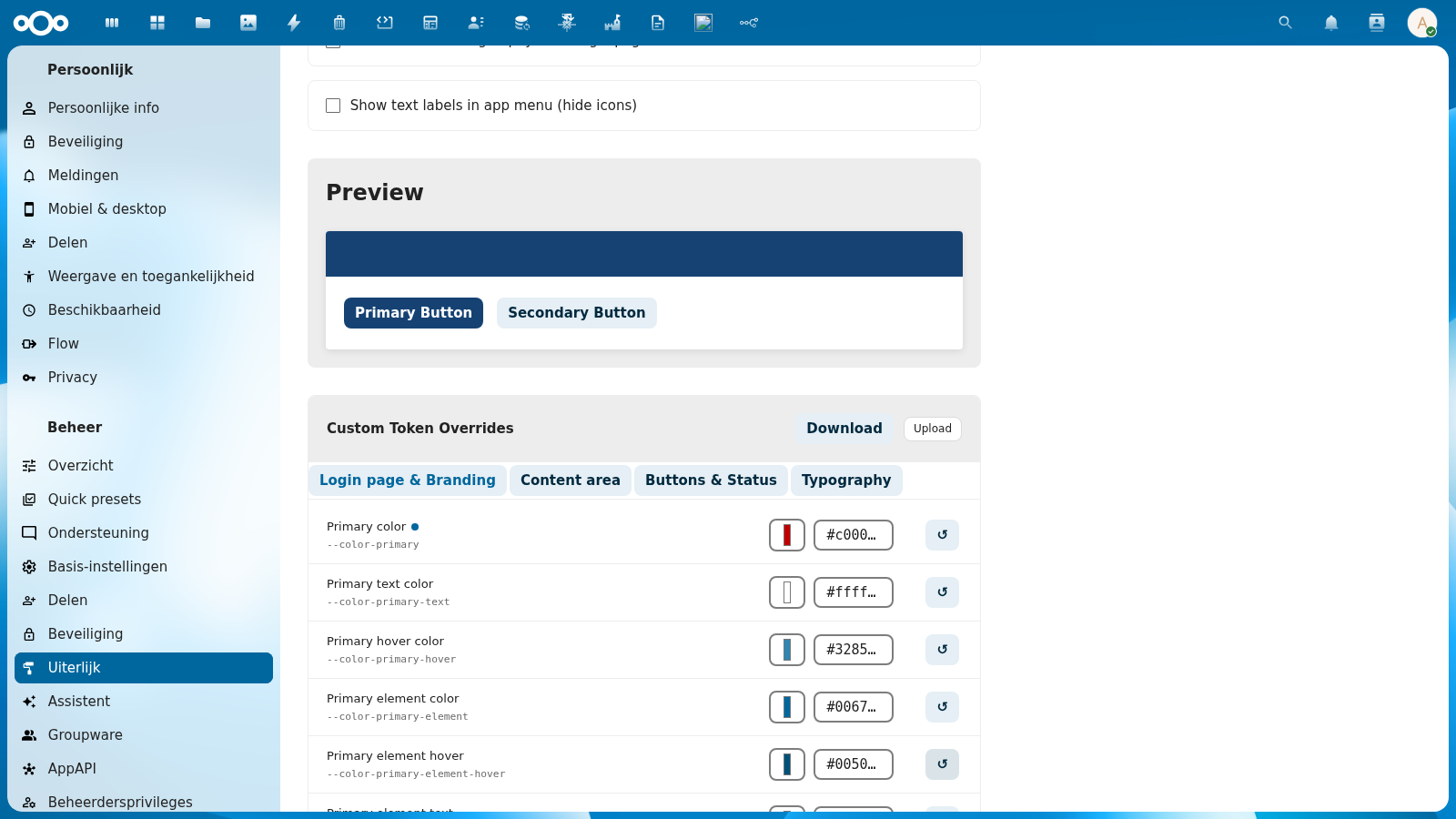
Category Tabs
Tokens are grouped into 4 tabs. Click a tab to switch between categories. The active tab is highlighted.
The tokens listed below are Nextcloud's own base tokens. They are locked until you tick Also edit Nextcloud's base tokens above the tabs and confirm the warning: each one is read by far more of Nextcloud than any single component, so changing it changes much more than the part you are looking at. To change one component, use that component's own rows in the preview instead. The base tokens lock again when you untick the box or leave the page.
Login Page & Branding
Controls the primary brand colors used throughout the interface — buttons, links, highlights, and the login page header.
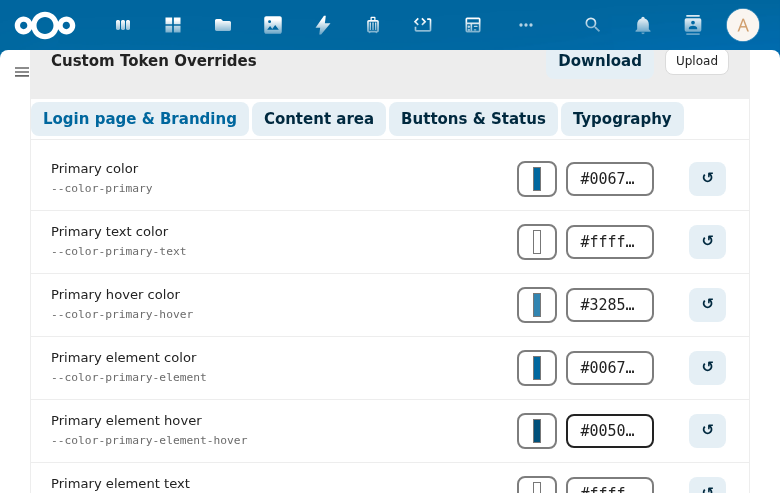
| Token | CSS Variable | Description |
|---|---|---|
| Primary color | --color-primary | Main brand color for buttons and accents |
| Primary text color | --color-primary-text | Text on primary-colored backgrounds |
| Primary hover color | --color-primary-hover | Hover state for primary elements |
| Primary element color | --color-primary-element | Color for active/selected elements |
| Primary element hover | --color-primary-element-hover | Hover state for primary elements |
| Primary element text | --color-primary-element-text | Text on primary elements |
| Primary light | --color-primary-light | Light tint of primary color |
| Primary light hover | --color-primary-light-hover | Hover state for light primary |
| Primary light text | --color-primary-light-text | Text on light primary backgrounds |
| Primary element light | --color-primary-element-light | Light element color |
| Primary element light text | --color-primary-element-light-text | Text on light element backgrounds |
| Primary element light hover | --color-primary-element-light-hover | Hover state for light elements |
Content Area
Controls background colors, borders, and border radii — the structural appearance of the interface.
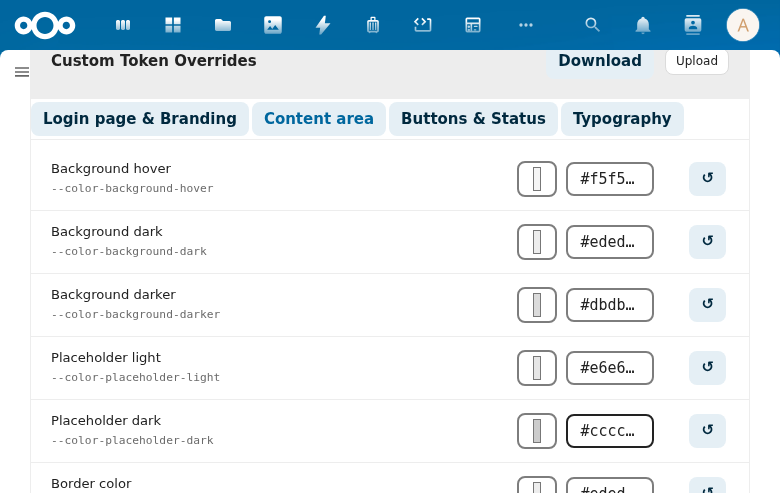
Covers: main background, dark/darker backgrounds, placeholder colors, border colors, border radius values (small, element, body container), scrollbar color.
Buttons & Status
Controls error, warning, success, and info state colors — used in alerts, status badges, validation messages, and notification banners.
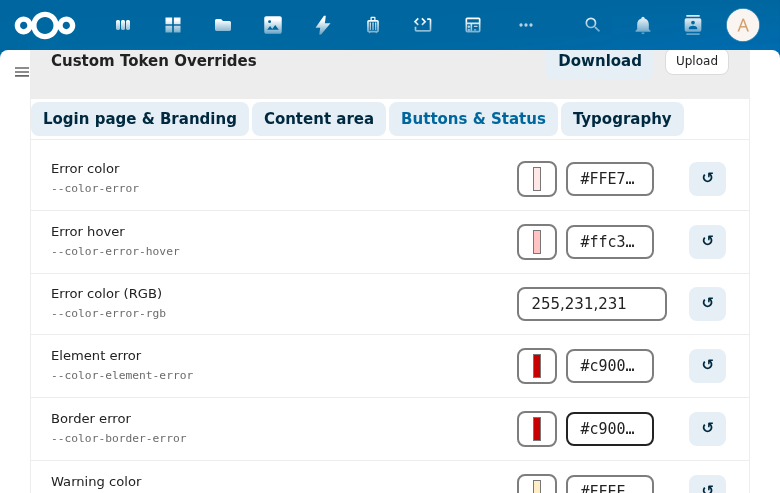
Covers: error color/hover/RGB/element/border, warning color/RGB/element, success color/RGB/element/border, info color/element, and favorite star color.
Typography
Controls text colors and the font family stack.
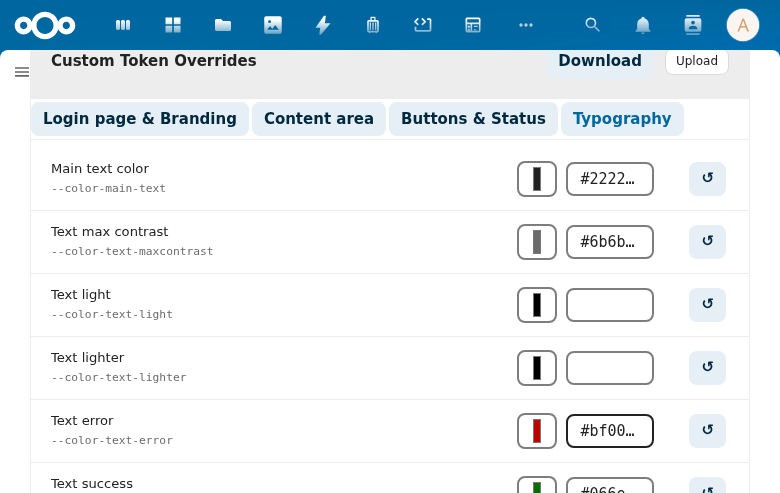
| Token | CSS Variable | Description |
|---|---|---|
| Main text color | --color-text | Primary body text color |
| Text max contrast | --color-text-maxcontrast | Maximum contrast text (accessible variant) |
| Text light | --color-text-light | Light/inverted text |
| Text lighter | --color-text-lighter | Lighter secondary text |
| Text error | --color-text-error | Error state text color |
| Text success | --color-text-success | Success state text color |
| Text warning | --color-text-warning | Warning state text color |
| Font family | --font-face | Full font family stack |
Search and component groups
Type in Search tokens to filter every tab and group at once. The search matches a token's label, its CSS name and the heading of its group, in your language. A group with a match opens; a group without one is hidden. Clear the field and the groups you had open come back.
Below the tabs, Component variables lists the variables inside Nextcloud's components and the Conduction apps: the date picker, the select box, the media player, code highlighting, the PDF viewer and more. Each group shows how many tokens it holds. Its rows are built when you open it, so the settings page stays quick to load.
A component row is labelled with the variable's own name, such as --dp-hover-color, the name you find in Nextcloud's CSS. The component variables page lists them all.
Advanced
The Advanced group holds the 13 variables that size Nextcloud's layout: the header height, the navigation and sidebar widths, the mobile breakpoint, the grid baseline and the clickable areas. It starts collapsed. Opening it shows a warning first: a wrong value here breaks the layout, not only the look.
Token Row Layout
Each token row contains:
- Token name — human-readable label (e.g., "Primary color")
- CSS variable — the actual CSS custom property name (e.g.,
--color-primary) - Color picker — click to open a native color picker (color tokens only)
- Hex input — type a hex value directly (e.g.,
#c00000) - Nextcloud's value: what Nextcloud itself gives this variable in your current theme, where it is known, so you see what you replace
- Note: a short remark from the variable inventory, where there is one
- Reset button (↺) — undoes unsaved edits: puts back the value you last saved, or the token set's value if you never saved one
The color picker and hex input are always in sync — changing one updates the other instantly.
Custom Value Badge
When a token has been manually overridden (saved to custom-overrides.css), a small colored dot badge appears next to the token name.
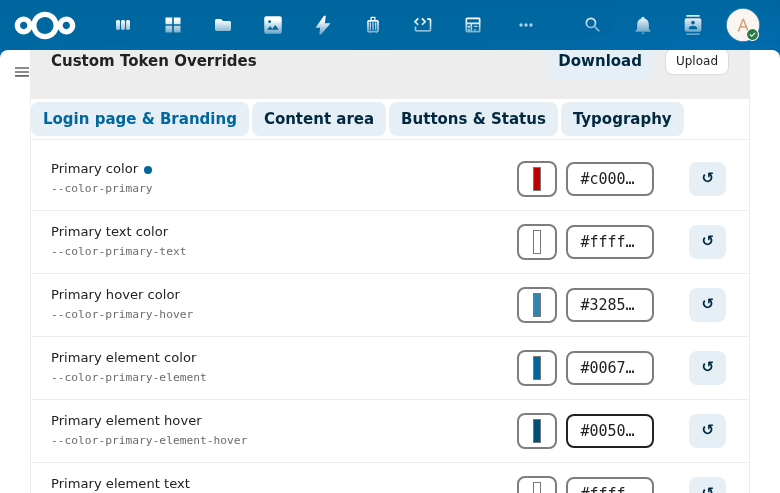
The badge color matches the overridden value, making it easy to identify which tokens have been customized at a glance.
To stop overriding a token, empty its field and click Save overrides — the token returns to the token set's value. The reset button (↺) only undoes edits you have not saved yet.
Live Preview
Every change you make is shown immediately in the Preview section above the editor. It is applied to the preview only: the rest of Nextcloud keeps the saved theme until you save.
Saving applies it — with Save overrides on the active theme, or by saving the changes as a new theme and selecting it. Reloading the page without saving reverts all changes.
Nextcloud version
Components that Nextcloud 32 to 35 draw differently have a Nextcloud version selector in the preview. It starts on the version your instance runs, and each component keeps its own choice. Components that every version draws the same have no selector. Under the preview it lists what the chosen version does differently for that component. The header and the note cards are also drawn as the chosen version, and the note cards show the rows that only that version reads. Other components keep the look of the version you run, and the preview says so while another version is chosen.
Header app icons on Nextcloud 32 and 33
On Nextcloud 32 and 33 the app menu in the header (Dashboard, Files, Photos, …) is drawn with white icon images. Header glyphs colours the icons that are drawn as glyphs — search, notifications, contacts and the account menu — but it cannot recolour images, so the app icons stay white whatever the header background is. Keep that in mind when you give the header a light background on these versions.
From Nextcloud 34 the app menu is a glyph as well, and follows Header glyphs.
Toast and note card text
Toasts and note cards have a background and a text colour per type (success, error, warning, info). When a theme sets a background but no text colour, the text is chosen automatically: white on a dark background, black on a light one. When the theme sets neither, toasts and note cards look exactly as Nextcloud draws them.
From Nextcloud 33 the note card colour is the card's fill. On Nextcloud 32 it is the stripe on the left, and the fill is a light tint mixed from a separate fill (Nextcloud 32) colour. Select 32 above the note card preview to see and set those; they are hidden for 33 and later, where Nextcloud does not read them. The automatic text colour compares against the card colour, so on Nextcloud 32 pick the text colour yourself if the automatic one does not suit the light fill.
Preview your own component
Building a component for your own portal or app? See it in the house style before you publish anything. Every tab of the preview ends with the chip Your component.
- Paste the component's HTML in HTML and its CSS in CSS. Read the house style through its tokens, for example
background: var(--nldesign-color-primary). - The frame under the fields draws it with the active token set, including edits you have not saved yet. Change a colour in the token list and the frame follows at once.
- The token list beside the preview shows the tokens your code reads. A token the editor can set has its editor row. Any other token shows its value, read-only.
- When your code reads a text token and its base, such as
--nldesign-color-primary-texton--nldesign-color-primary, the stage shows their contrast against WCAG AA. - Dark theme shows the frame with the set's dark values. Nextcloud's own variables keep the theme you are using.
- Give it a name and click Save component. It gets a chip of its own, and a link:
#preview=content/own-{name}. You can keep 20 components of at most 64 KB each. Only administrators see them, and saving one changes nothing for other users.
Three locks keep pasted code harmless. The frame runs no scripts and cannot submit forms, open windows or move this page. It loads nothing from outside this server. And the code is cleaned before it is drawn: scripts, event handlers, external addresses and elements outside a fixed list are removed, and the stage says what it removed, for example "Removed: 1 script, 2 event handler".
Transparency, dark values and motion
Transparent colours
Every colour row has an opacity control next to the picker: a slider and a number from 0 to 100. The picker sets the colour, the opacity sets how much of it shows. Together they write an 8-digit hex such as #15427380. At 100 the editor writes the plain 6-digit hex.
The swatch shows the colour over a checkerboard, so you can see how transparent it is. You can also type any colour into the text field: #rgba, #rrggbbaa, rgb(), rgba(), hsl(), hsla(), a colour name or transparent. The picker and the opacity follow what you type.
The contrast check measures what people actually see. A transparent text colour is first blended over its background, and only then compared. Faint text fails, even when its colour alone would pass.
Nextcloud's own theming has no transparency. When a token set with a transparent primary or background colour is synced to Nextcloud's theming, Nextcloud gets the blend over the set's background instead. The sync dialog shows both values.
A dark value per colour
The brand colours (Nextcloud's own colour variables) have a second line, Dark. Leave it empty and thematiq derives a dark value from the light one, the same way it derives the dark variant of a token set. The empty field shows that derived value as its placeholder.
Type your own value to use it instead. Both kinds of dark user see the same colour: a user whose system is set to dark, and a user who chose the dark theme in their Nextcloud settings.
The theme colours Nextcloud varies per theme, such as the search highlight, and the colour rows of the component groups work differently. Nothing is derived for them. Leave Dark empty and dark mode keeps Nextcloud's own dark value, which the placeholder shows. Type a value to use yours in dark.
Animation speed and easing
Animation quick and Animation slow take a number and a unit, ms or s. The longest is 5 seconds. Saving one also sets thematiq's own name for it, so Nextcloud's components and thematiq's buttons and fields move at the same speed.
Animation easing picks the curve: linear, ease, ease-in, ease-out, ease-in-out, or Custom curve. A custom curve takes four numbers, as in cubic-bezier(0.2, 0, 0, 1). Both x values must lie between 0 and 1. A set that does not declare an easing uses ease.
Preview motion moves a block with the speed and curve you chose. When your system asks for reduced motion, the block stays still and the preview shows the values as text. Reduced motion always wins over the speeds you set here.
Values the editor refuses
Each value is checked against its type when you save. A colour field takes only colours, a duration needs a unit, and a curve must stay in range. When a value does not fit, nothing is saved and the message names the token. Fix that field and save again.
Overrides saved before this check keep working. An upgrade adds the dark values and the second animation name to them, and keeps every value as it was.
Your own tokens
Below the tabs is Your own tokens. Add a token there when the house style needs a value that no shipped token holds, such as a brand accent for a campaign banner. No code change and no token set upload is needed.
Click Add a token and fill in:
- Name: the part after
--nldesign-org-, in lowercase letters, digits and single dashes, at most 48 characters.brand-accentbecomes--nldesign-org-brand-accent. - Label: what the list shows.
- Type: colour, text, duration or easing. The value is checked against it, like the editor's own values.
- Dark value: for a colour only. Leave it empty and dark mode uses the light value.
The token is on every page from the next page load, in every token set. Use it straight away in Custom CSS, for example .header-menu { border-color: var(--nldesign-org-brand-accent); }. Apps that read the house style can use it too.
Shipped tokens never use the --nldesign-org- prefix, so an update cannot overwrite yours. Edit a token to change its label, type or value; its name stays. Remove asks first, and names the deprecation when the token has one.
Deprecate a token
When a token is going away, tell the teams that use it before it is gone. Click Deprecate on an own token, or Deprecate a token under Deprecated tokens for any token whose name starts with --nldesign-. Choose:
- Severity: info, warning or critical.
- Replacement token: optional, and it must exist.
- Removal date: optional, today or later.
- Message: optional, a line of explanation.
A deprecation never changes a value. The token row gets a badge with the severity in words. After the removal date the badge also says Due for removal, and still nothing happens by itself: removing an own token stays your decision. Its deprecation is then kept, marked as removed, so an app that missed the date can still read what happened.
A shipped token cannot be removed, because its value comes from the token set. Its deprecation is a notice to the teams that use it, and the list says so.
The served stylesheet writes the notice above each deprecated own token, so a developer who inspects the variable sees it:
/* deprecated (warning): use --nldesign-org-brand-accent, removal 2027-03-01 */
--nldesign-org-old-accent: #aa0000;
When an uploaded token file marks tokens as deprecated, the upload result lists them and offers Record as deprecations. Nothing is recorded until you click it. Each notice becomes a deprecation with severity warning and the notice text as its message; edit it afterwards to add a replacement or a date.
Own tokens and deprecations travel with the configuration bundle (ownTokens and tokenDeprecations). Every change is in the theming audit log.
Building an app that reads the house style? See Read token deprecations from your app.
Saving Overrides
Click Save overrides at the bottom of the token editor to persist all current values.
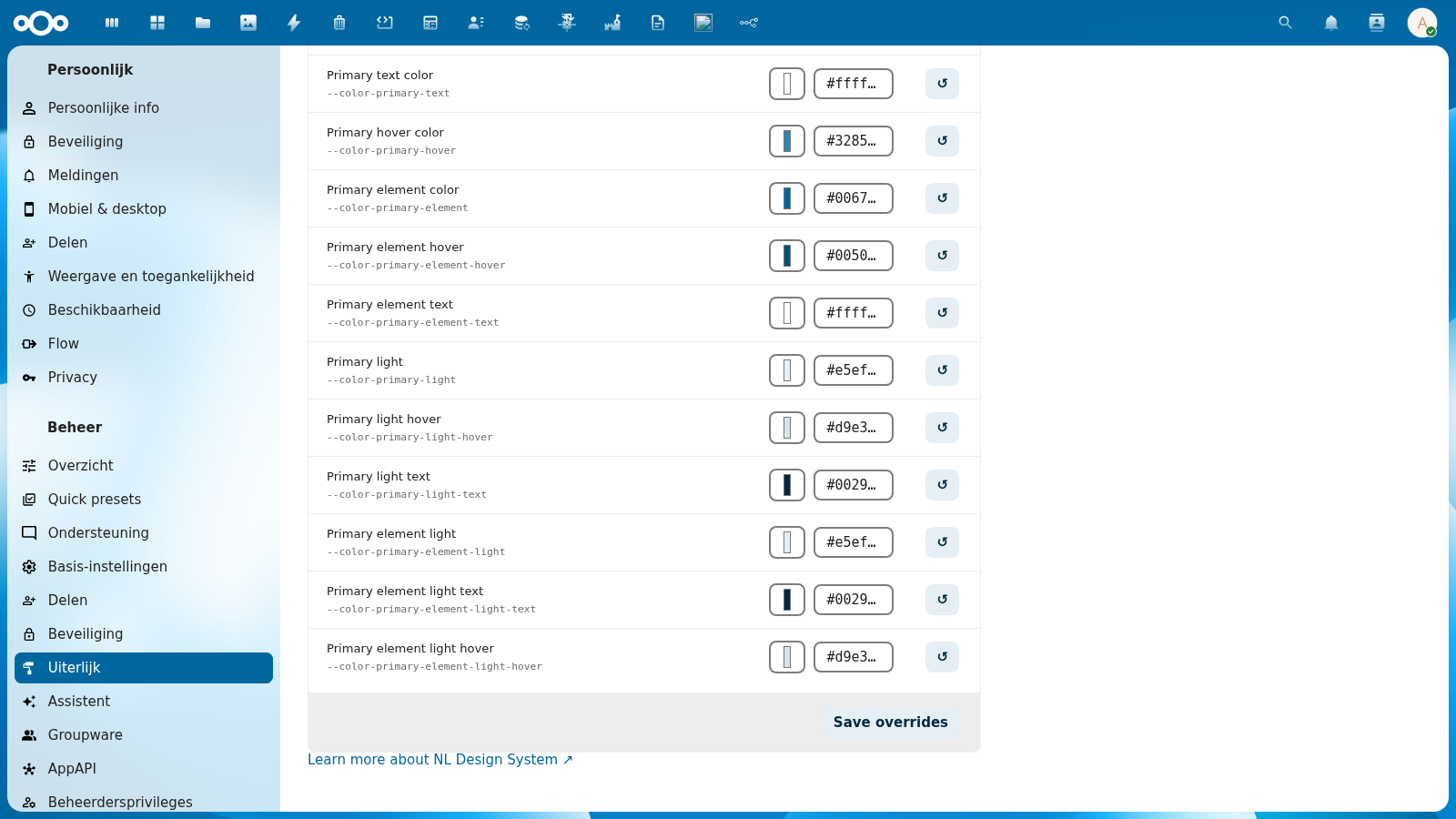
On save:
- Only tokens that differ from the token set's defaults are written to
custom-overrides.css - Tokens at their default value are excluded from the saved file
- A success toast notification confirms the save
The saved CSS file is served at every page load, so overrides persist for all users and survive browser refreshes.